Rules and Routes
You can comprehend and follow each movement of a product by using the routes that have been set for it. It is the operational path or track utilized for moving inventory. It is challenging to track and manage the inventory movements of a business without a good strategy. You can establish specific operational rules to specify the product movements in inventory based on your company's policies. Using these rules, you may set up many operation paths for the products using Odoo 17. This will guarantee that your business is managing its inventory properly.
Users will have access to various platforms to set appropriate rules and routes for stock transfers in the Odoo 17 Inventory module. Before defining routes for inventory, make sure to configure the storage locations and warehouse operations that the routes in Odoo17 are related to. You must enable this option from the module's Settings menu in order to build up new routes in Odoo 17. The Multi-Step Routes can be activated from the Warehouse tab, which is located where it is illustrated below.
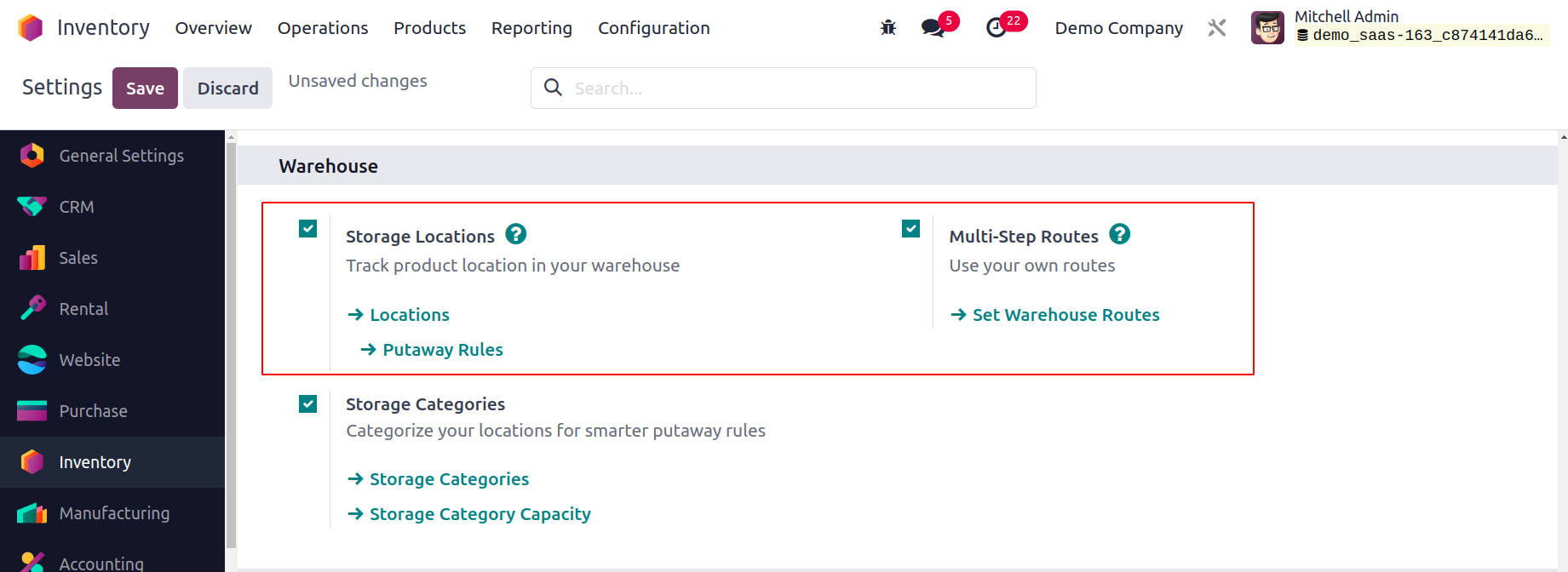
Due to their interdependence, when this option is selected, the Storage Location feature will also be active automatically. We already covered how to set up locations and warehouses for inventory management. Let's now examine how a company's product movement rules are set up.
Creating Rules
From the Configuration menu of the Inventory module, the user can choose to set up new rules for inventory moves. A new window with the list view of the already specified Rules is opened by selecting the Rules option under the Warehouse Management menu, as shown below.
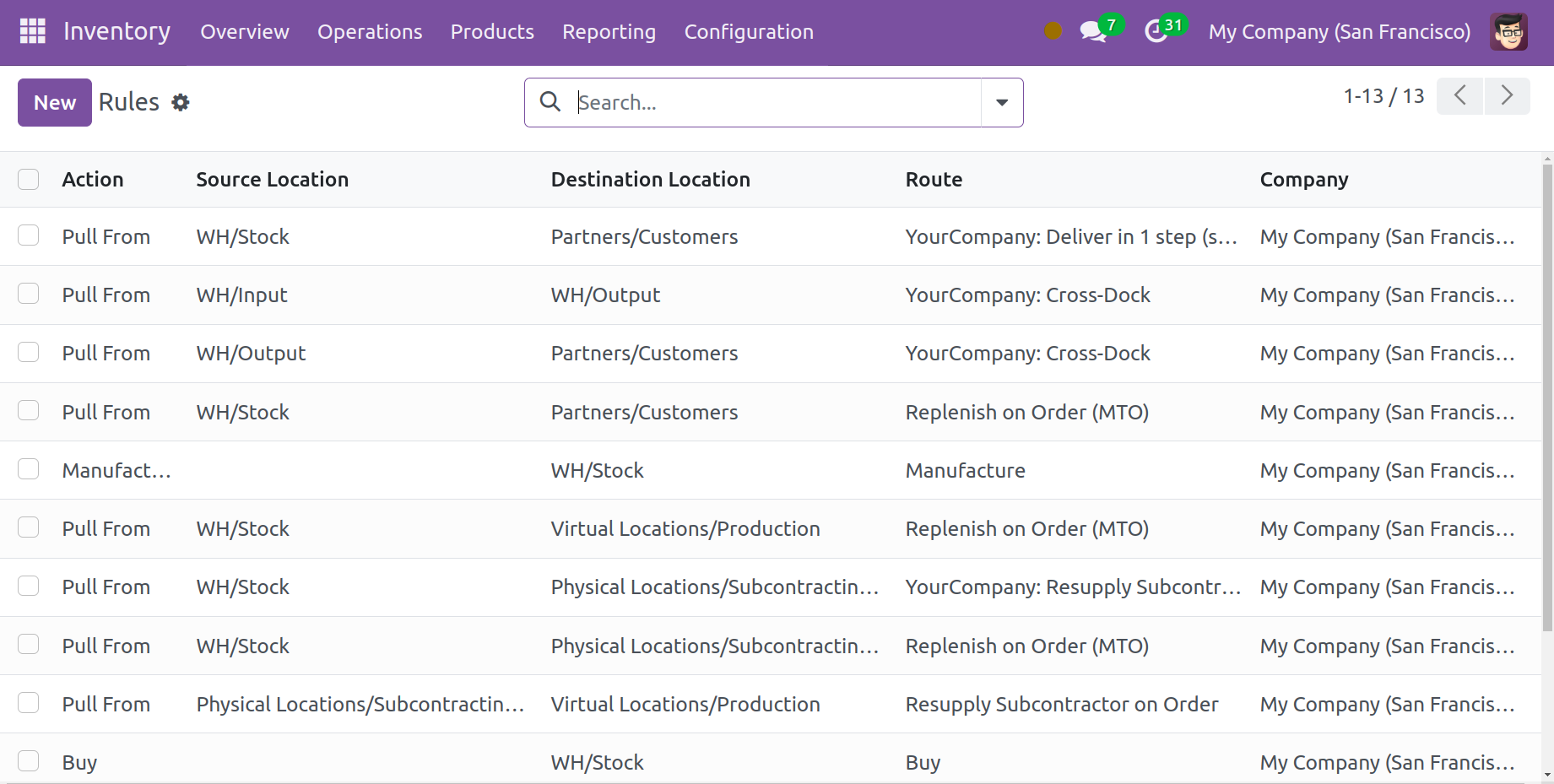
You can see the Action, Source Location, Destination Location, Route, and Company information for each Rule from this preview. Like any other platform, Odoo ensures that the basic and customizable GroupBy and Filters options are available to make searching easier. You can immediately click the New button to learn the procedures for configuring a new rule in Odoo 17.
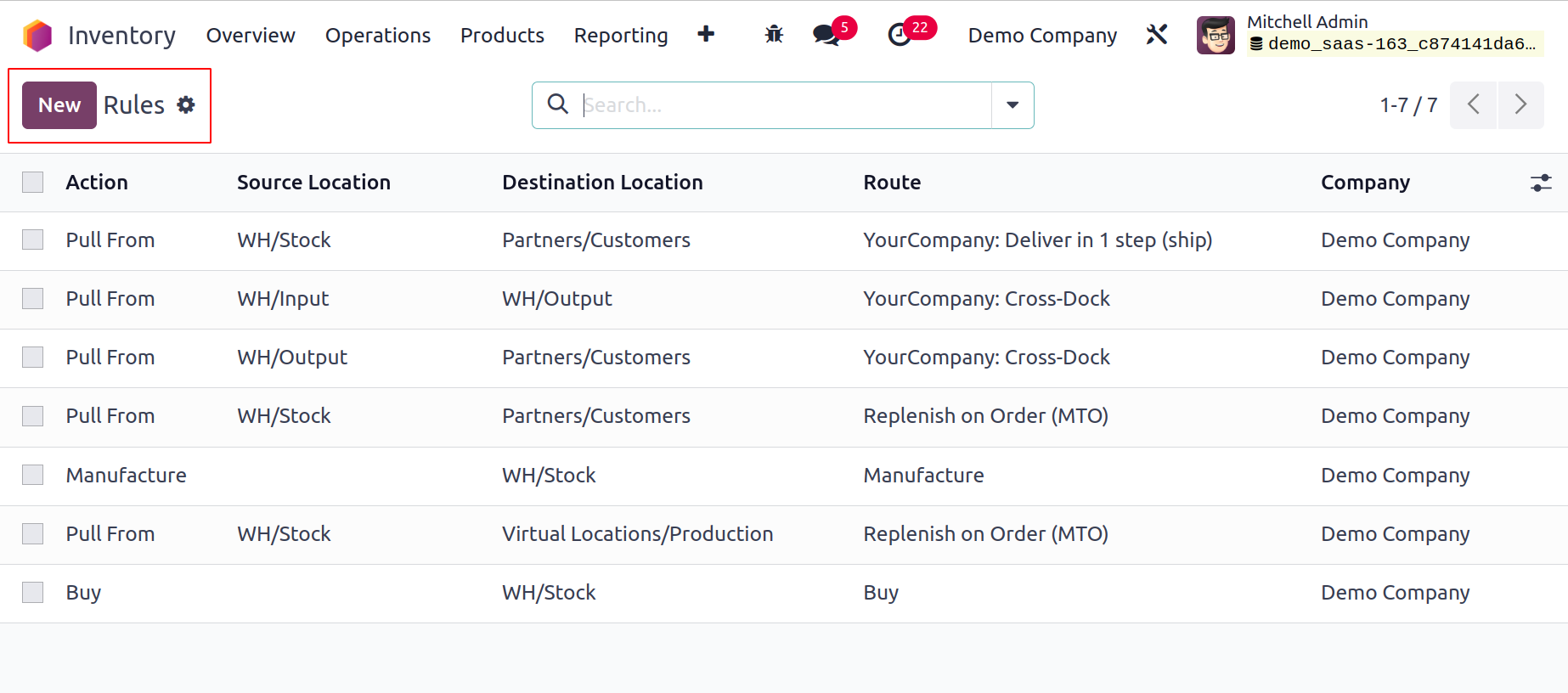
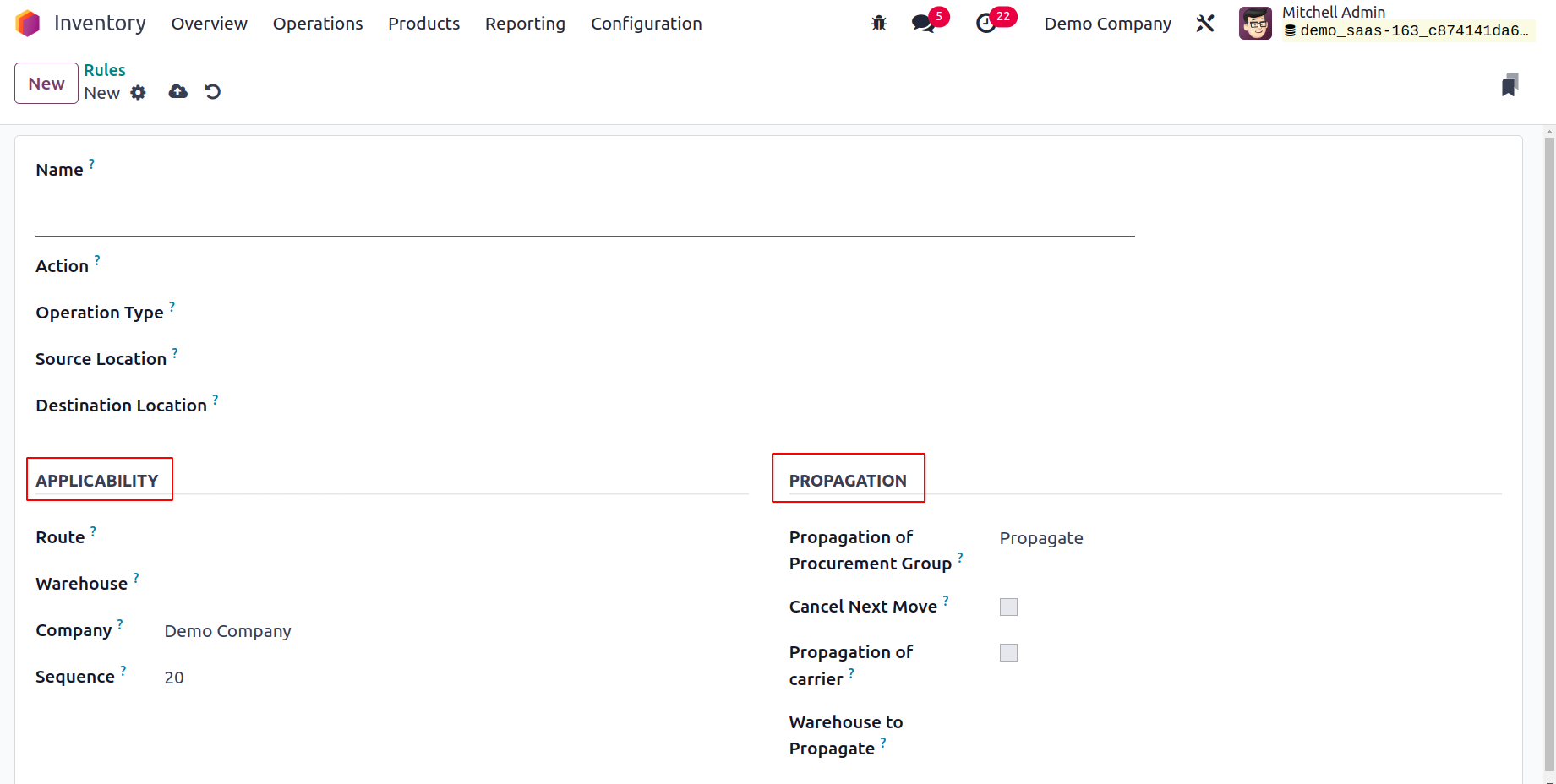
You can include a suitable title for the new rule in the Name area. The Action for the new rule needs to be defined next. Here, a drop-down menu will allow you to choose the appropriate course of action.
Pull From: When products are required at the destination location, you can configure this action to "pull from." It may come from a manufacturing order or a sales order. Odoo17 will produce a picking operation type from the source location to fulfill the need when a product demand occurs in the destination location.
Push To: This rule allows you to move a product to a different location. This action allows you to transport items to another area after they arrive at the originating location. To send them to the destination location in this scenario, Odoo17 will generate a pickup operation type.
Push & Pull: Both of the aforementioned scenarios can be handled by this action. A picking is produced from the source area to meet the need when products are required in the destination place. This necessitates product specifications at the point of origin. Products are pushed to the destination site to meet the needs of the destination location once the source location has satisfied the requirement.
Manufacture: With the help of this action, you can create manufacturing orders directly in order to meet the demands of the source location.
Buy: With the aid of this action, Odoo will produce a request for quotation to acquire the goods in order to satisfy the need when products are required at the destination site.
You can specify the operation type, source location, and destination location in the following areas. You can specify the Route, Warehouse, Company, and Sequence on which this rule is applicable in the Applicability tab. You can select Empty, Fixed, or Propagate for the Propagation of Procurement Group under the Propagation tab. The move generated by this rule is canceled, together with the subsequent move, by turning on the Cancel Next Move option. You can specify a warehouse other than the warehouse this rule is for in the Warehouse to Propagate field for a newly established move or procurement.
Let's now examine how to set up routes in the Odoo17 Inventory utilizing these rules.
Creating Routes
The Configuration menu of the Inventory module's Warehouse Management tools provides access to the platform for managing and creating various operational routes. Here, the user can view the predefined list of routes together with information about the company and the routes' names.
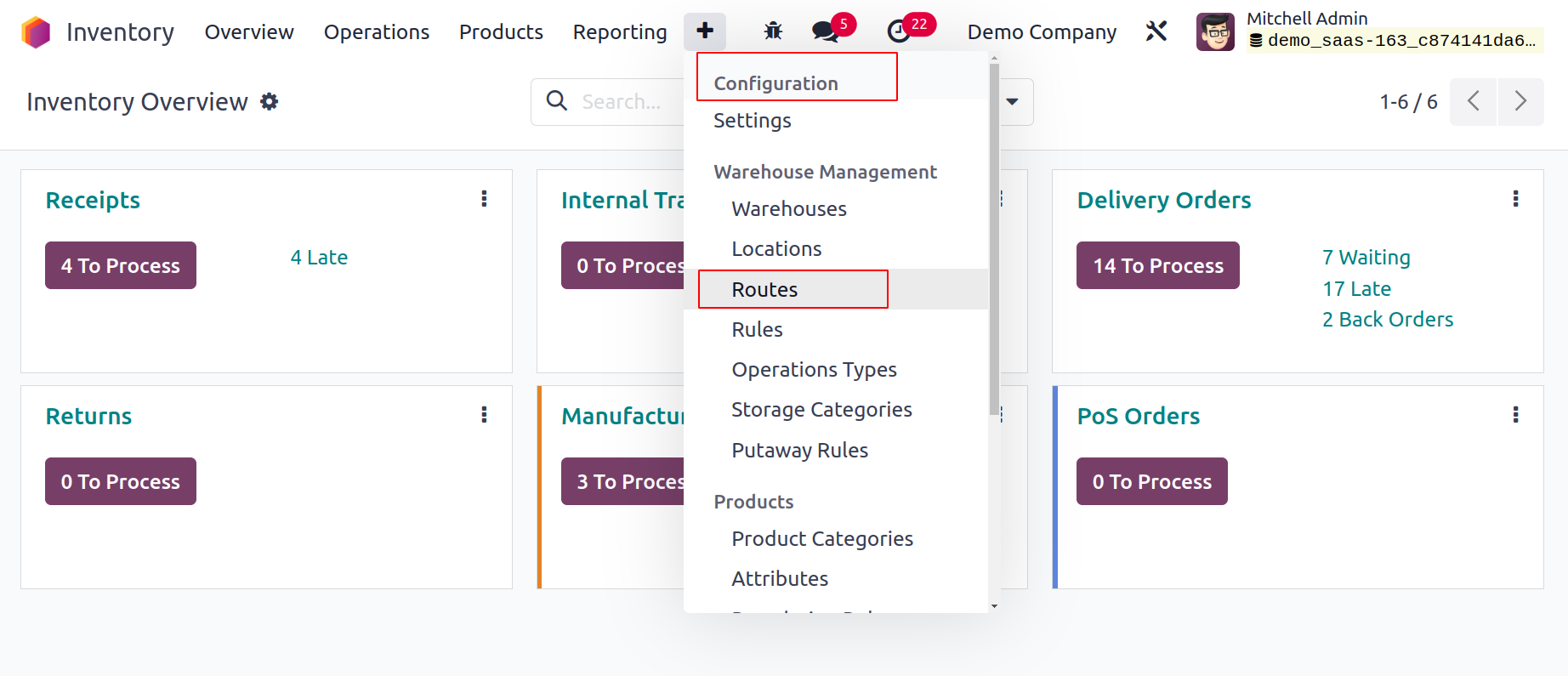
To build a fresh route for inventory moves, click the New button.
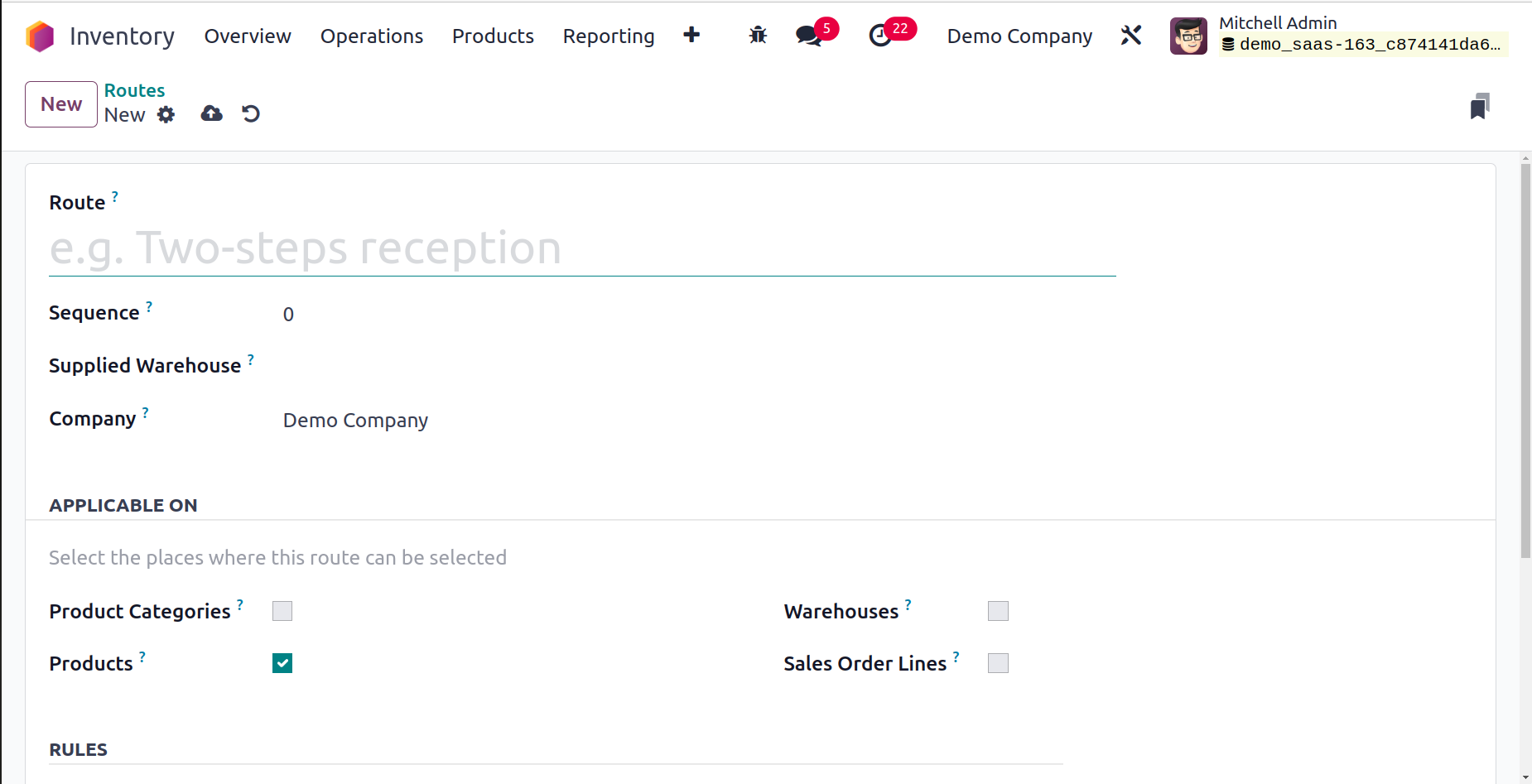
The Route field allows you to specify the route's name. The Sequence, Supplied Warehouse, and Company can also be specified in the corresponding fields. If this route is shared by all the companies configured in your database, you can omit the Company field. You can choose the locations where this route can be selected in the APPLICABLE ON tab. According to your company's policies, you can choose from the Product Categories, Products, Packaging, Warehouse, and Sales Order Lines available here.
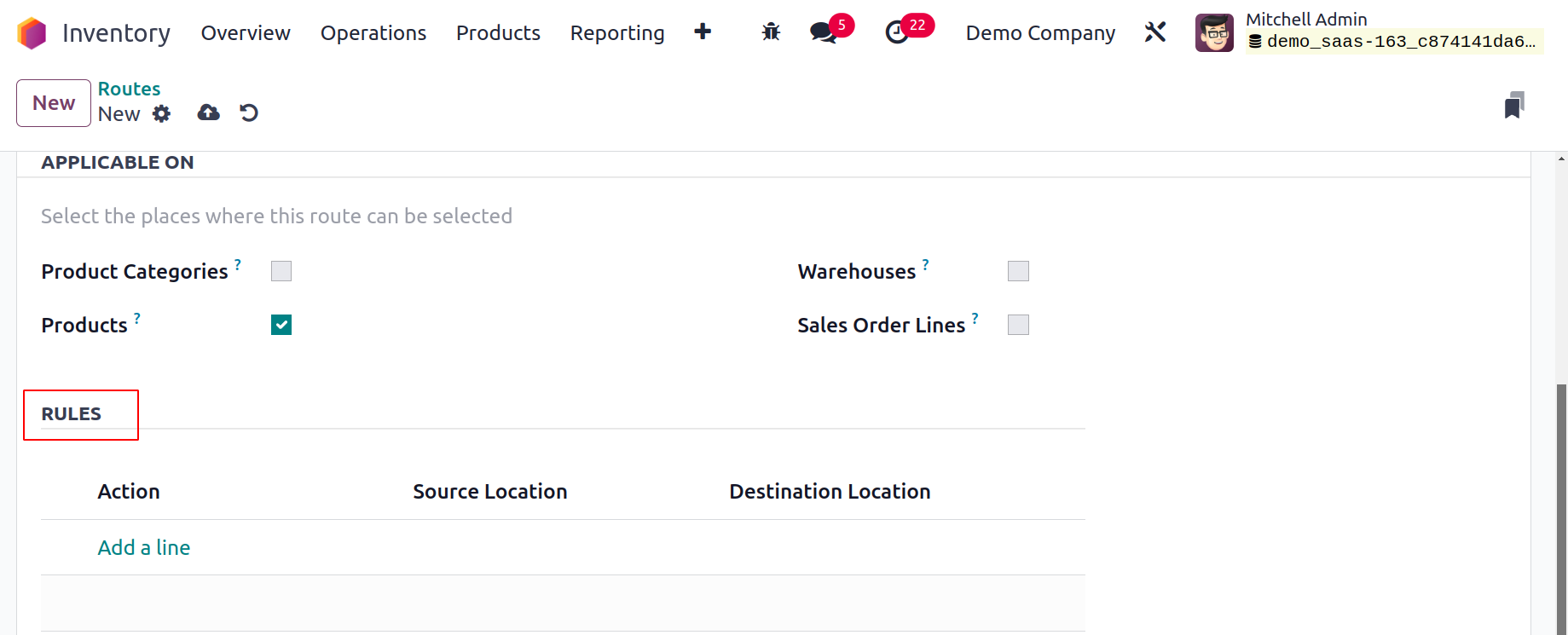
Using the Add a Line button located under the Rules tab, you may describe the rules applied to this path of operation. By taking the actions we covered in the earlier section, you can configure new rules for this route. Don't forget to click the Save button at the end to save the modifications.
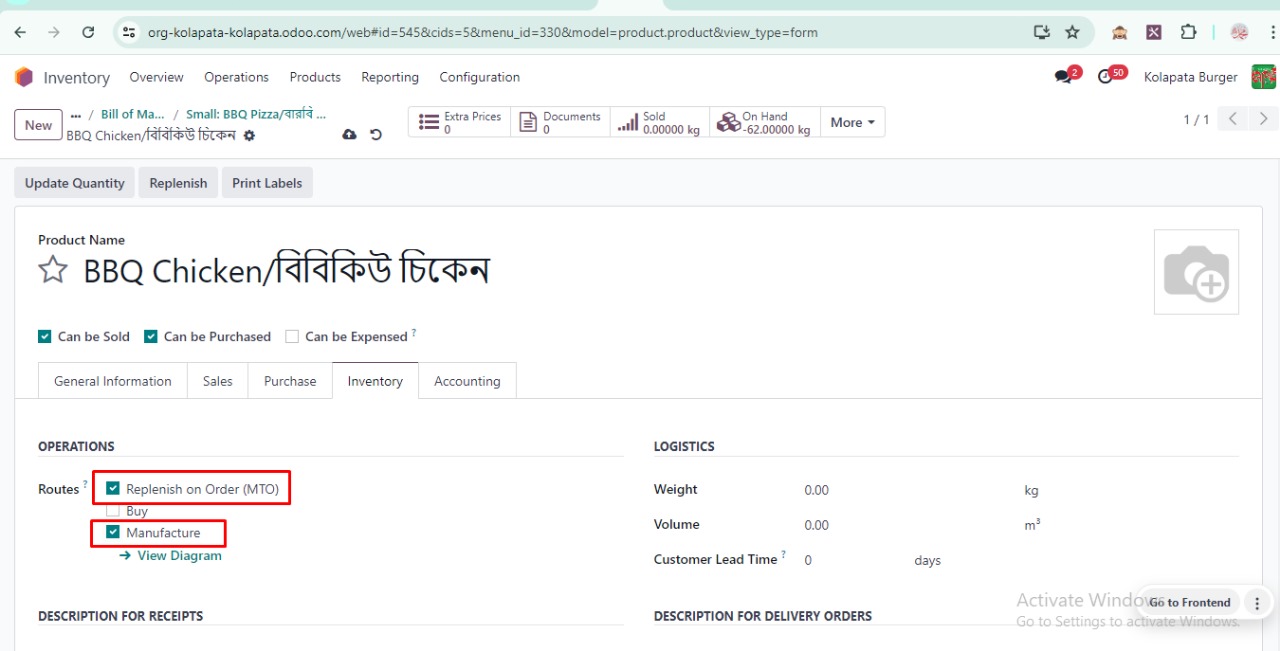
While configuring each product in the database, you can provide a specific path of operation for each one in Odoo 17. To choose the best path for a product's inventory movement, you may locate a specific field in the Inventory tab of the products management window, as shown below.
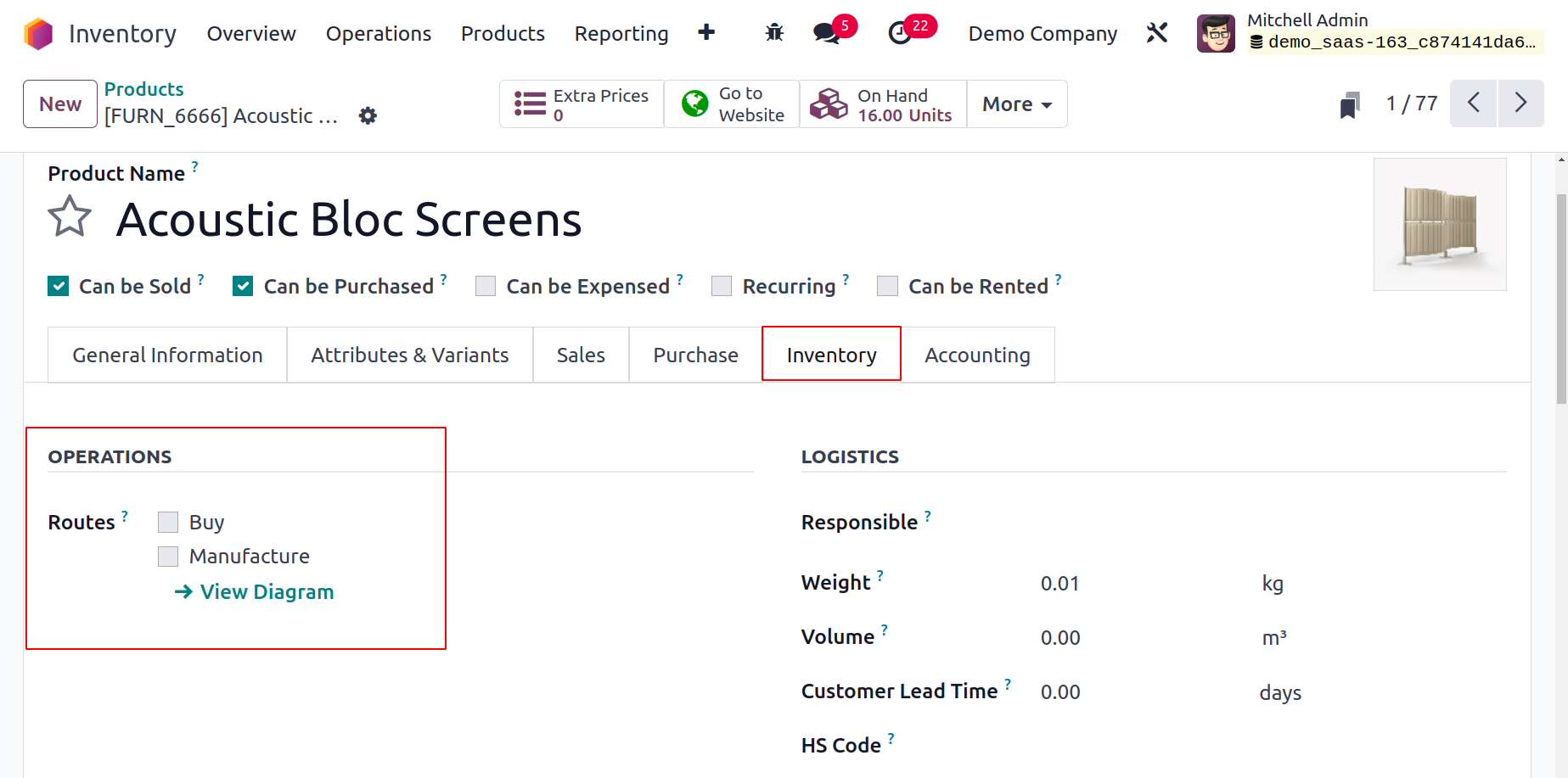
This field lets you specify a product's route based on the module you installed in your Odoo 17 database. Depending on the path you take, it can be purchased, produced, supplied on demand, etc. In Odoo17 Inventory, we define product movement routes in a similar manner.