When creating sales and purchase orders in Odoo, you can select the unit of measure for each line item. The system will automatically calculate the quantities in the base unit of measure, taking into account the conversion rates you've configured. This feature simplifies order processing and reduces the risk of errors.
- Configure Different UoM in Odoo
- Odoo provides a user-friendly interface to set up units of measure for your products. Here's a step-by-step guide on how to configure different units of measure in Odoo 17:
1. Log in to Odoo:
Access your Odoo instance using your credentials.
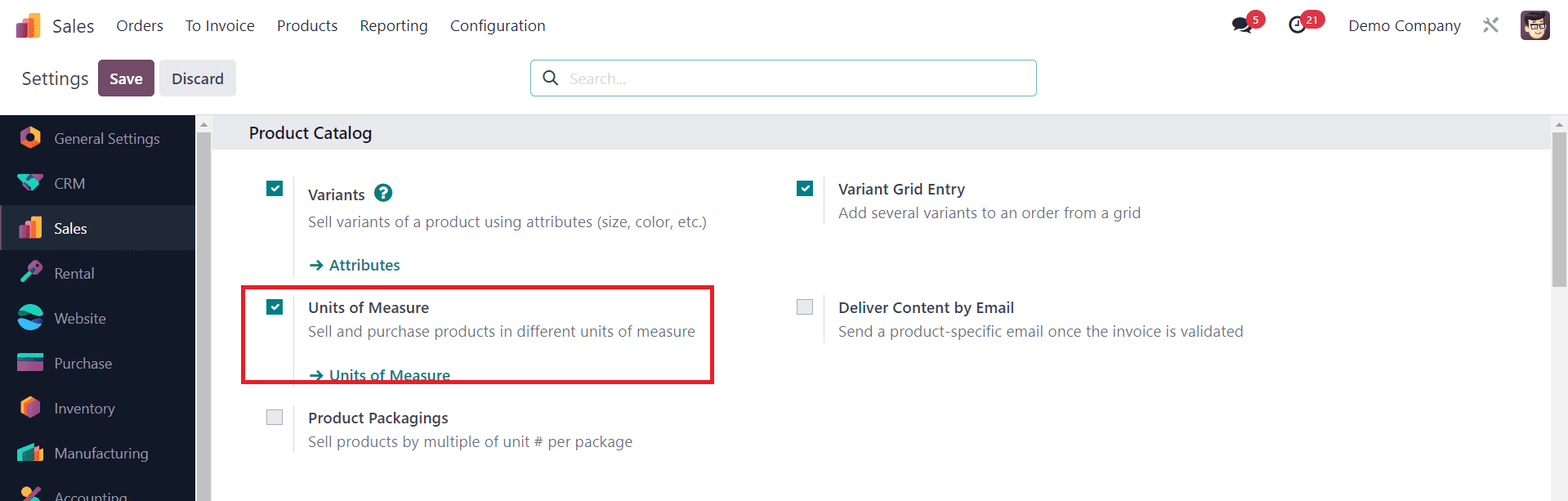
2. Go to the Sales Module and Activate the Unit of Measure Feature:
From the Odoo dashboard, navigate to the “Sales” module. You can usually find it in the main menu. Under the Settings tab of the Sales module, you can find the “Unit of Measure” feature to activate. Enable this feature to sell and purchase products in different units of measure.
3. Configure Different UoM:
In the Odoo 17 Sales module, select "Unit of Measure Categories" under the "Configuration" section. This will take you to the UoM list.
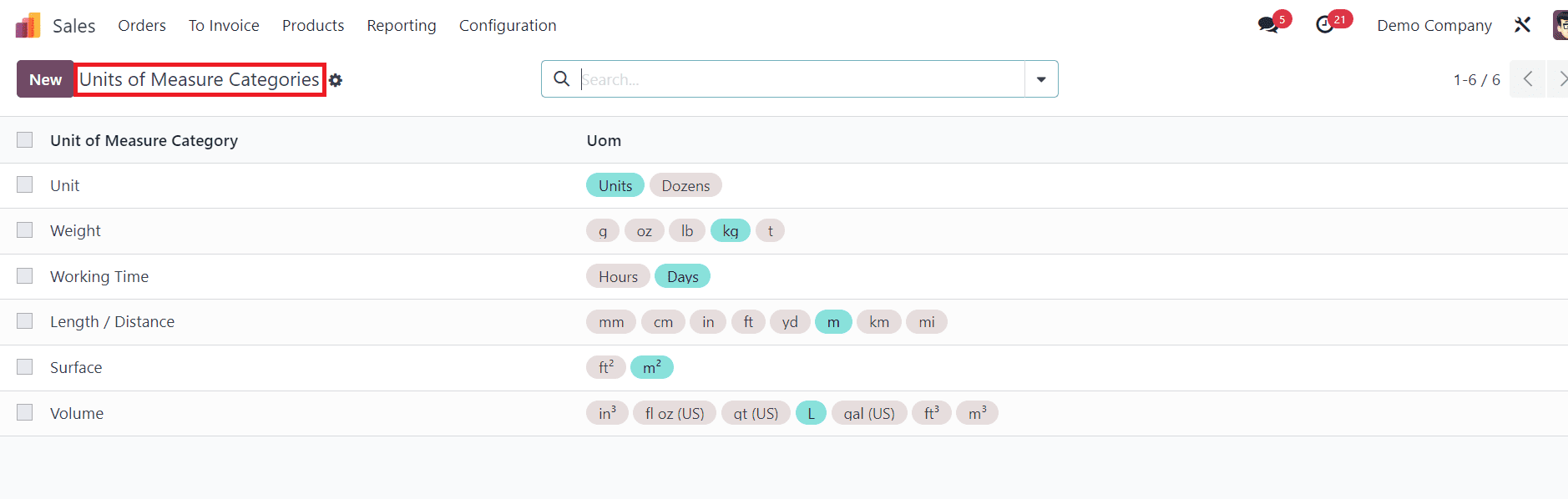
The reference unit of measure which is the primary unit you use to manage stock and pricing can be seen in blue color. You can either create a new UoM category or edit an existing one to configure different units of measure. Click on the UoM category you want to configure.
4. Edit UoM Details:
Inside the UoM Category details page, locate the "Units of Measure" tabs. This tab will allow you to configure units of measure for selling and purchasing the product.
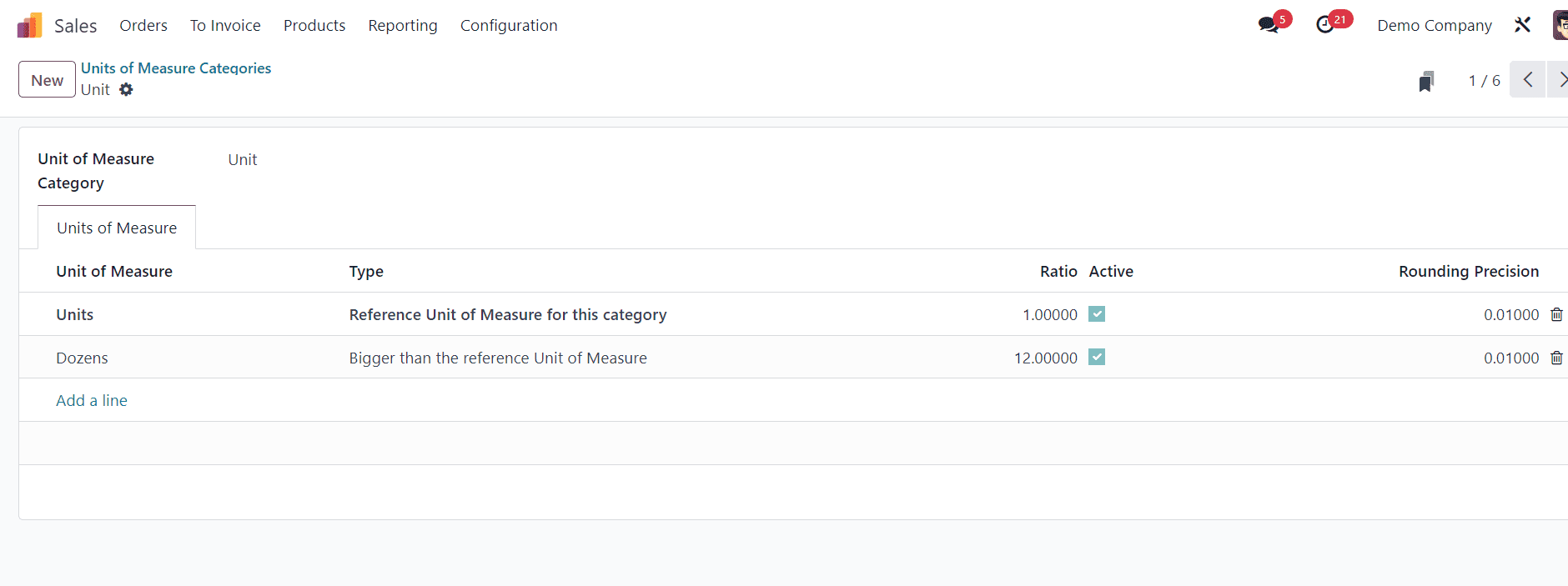
Set the base or reference unit of measure for this product, which will be used as the primary unit for managing stock and pricing. For example, if you're selling items in pieces, you'd set the unit of measure to "Unit(s)".
5. Define Additional Units of Measure:
To add different units of measure, click on the "Add a Line" button. You can then add alternative units of measure. For each additional unit of measure, specify the conversion factor that relates it to the base unit. For instance, if you're selling in dozens, specify a conversion factor of 12 if the base unit is "Unit(s)".
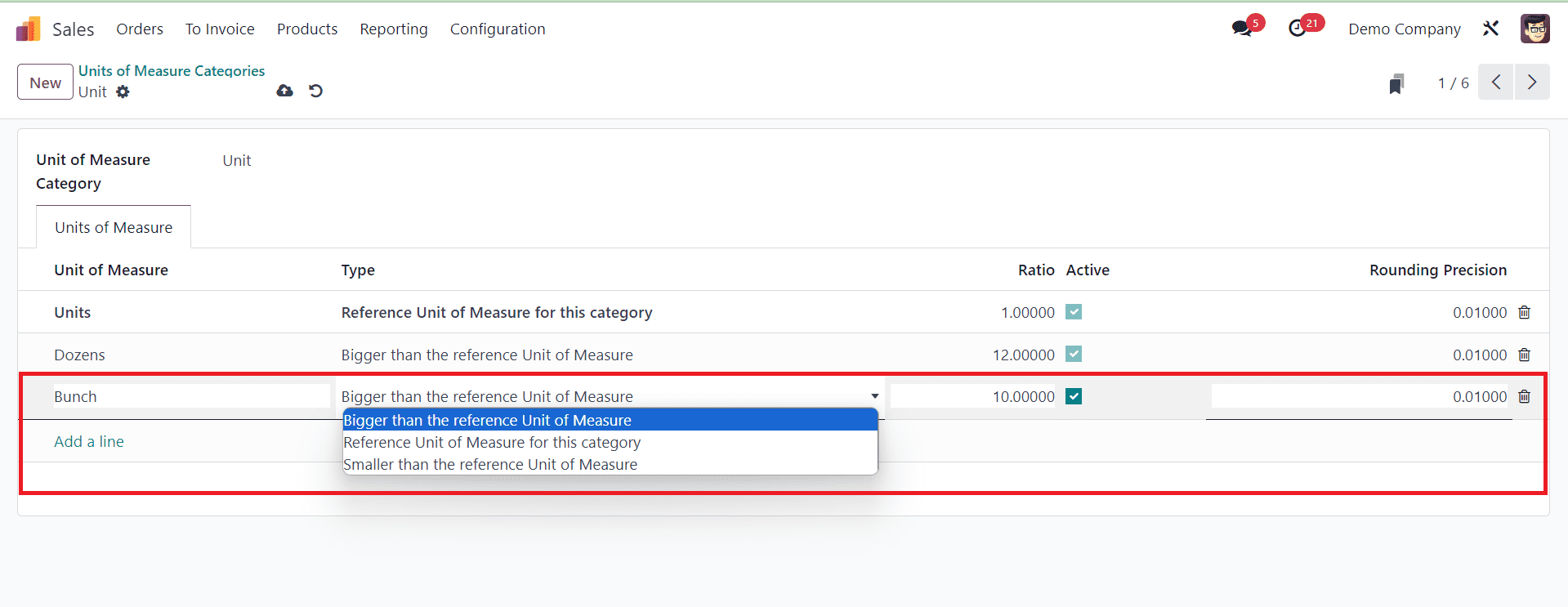
Here, we added Bunch as the new unit of measure which belongs to the type Bigger than the reference Unit of Measure with the ratio 10. This means the newly created unit of measure is 10 times bigger than the reference UoM.
6. Save the UoM:
After configuring the units of measure, make sure to save the details.
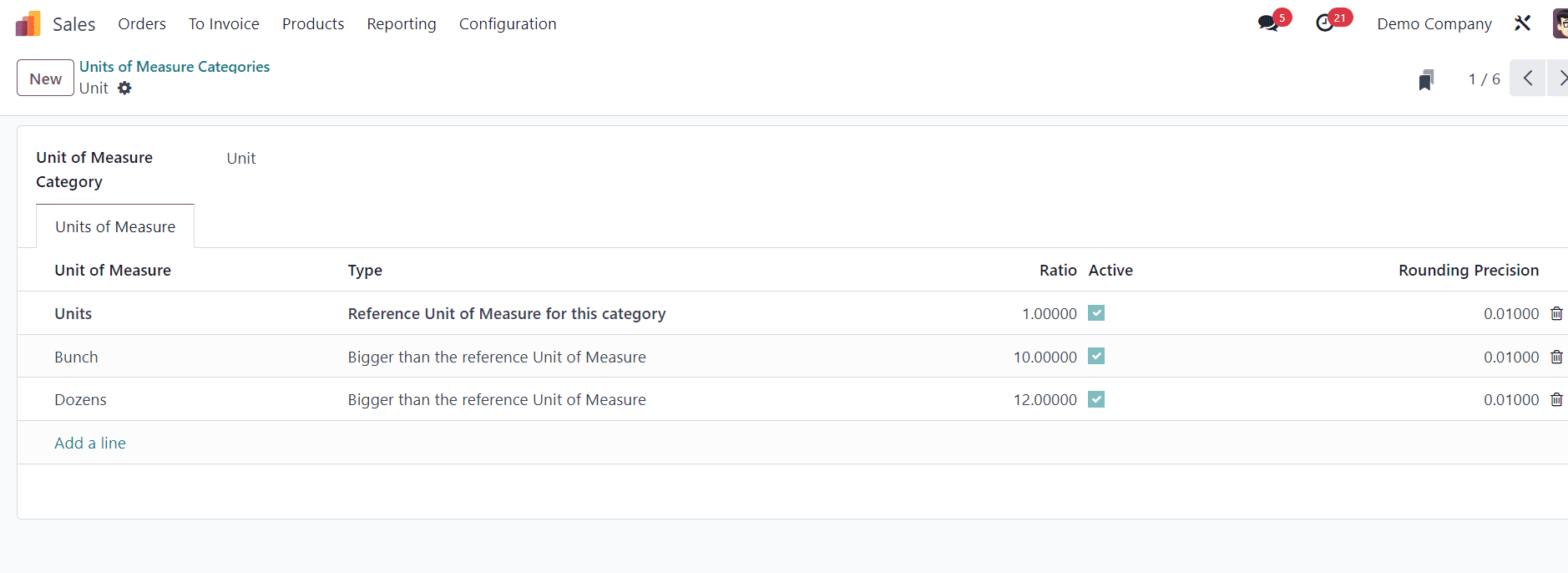
You have successfully configured different units of measure for a product in Odoo. Once you've set up the units of measure, Odoo will handle the conversion of quantities between units for you during sales and purchase transactions. You can repeat this process for other products as needed. This feature allows you to manage and transact products in various units of measure while keeping accurate inventory records.
Product Configuration
Before you can sell or purchase products in different units of measure, it's essential to set up your products correctly in Odoo. Each product should have its base unit of measure (e.g., pieces, kilograms, liters) defined. Additionally, you can configure alternative units of measure (e.g., dozen, case, box) for the same product.
Once you've set up the units of measure, it's time to assign them to your products. Go to the Sales module and select the product for which you want to set different units of measure.
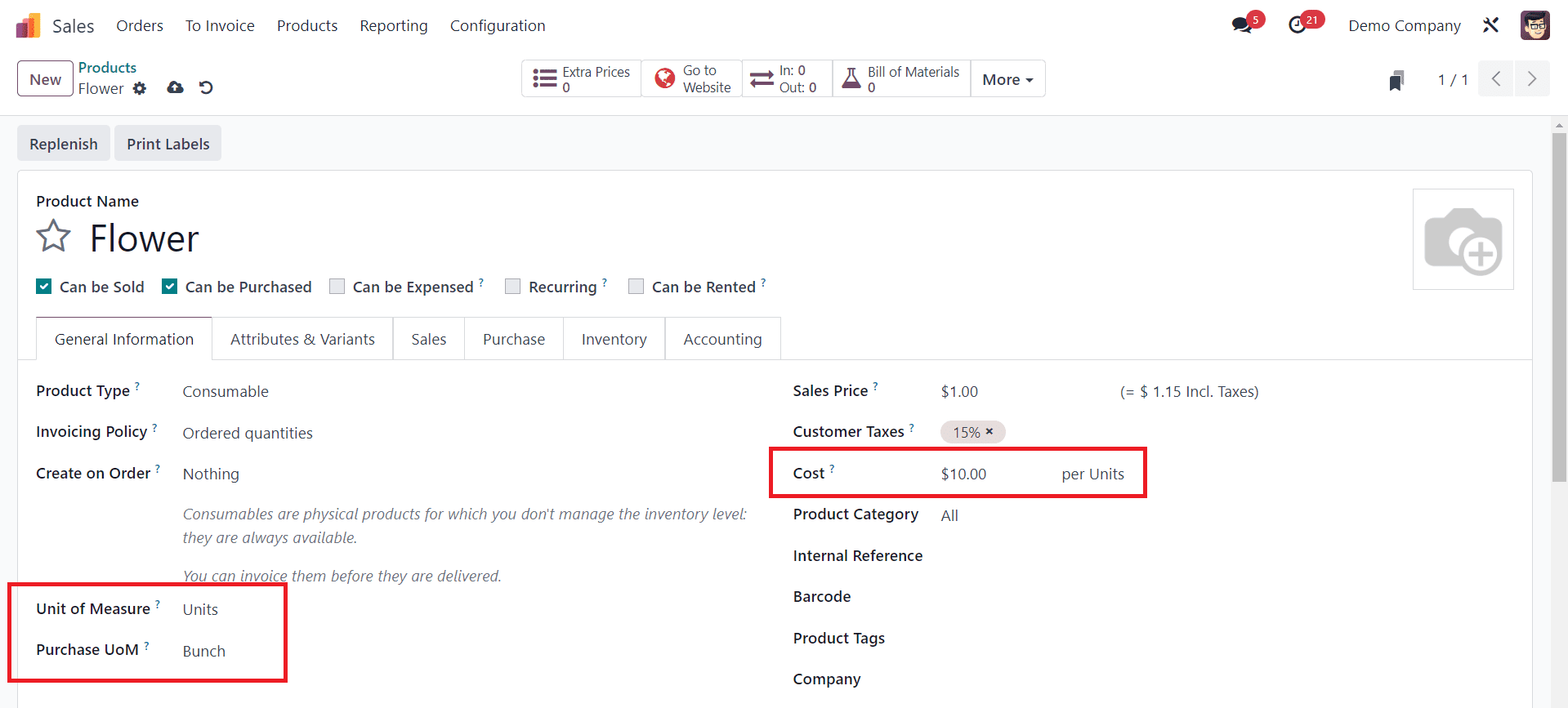
In the product form, you can define the default unit of measure, typically the unit in which you manage all stock operations of this product in the “Unit of Measure" field. Specify the default UoM used for purchase orders in the “Purchase UoM” field. For example, if you're purchasing a product by Bunch, you can set the "Purchase Unit of Measure" to "Bunch". Here, we configured Flower as a new product with a $10 cost per unit and set Purchase UoM as Bunch.
Sell and Purchase Products in Different Units of Measure
When creating a purchase order, you can select the unit of measure you want to use for ordering the product. Odoo will automatically perform the conversion based on the conversion rate you specified. Here, we are creating a new purchase order for the product Flower from the Odoo 17 Purchase module.
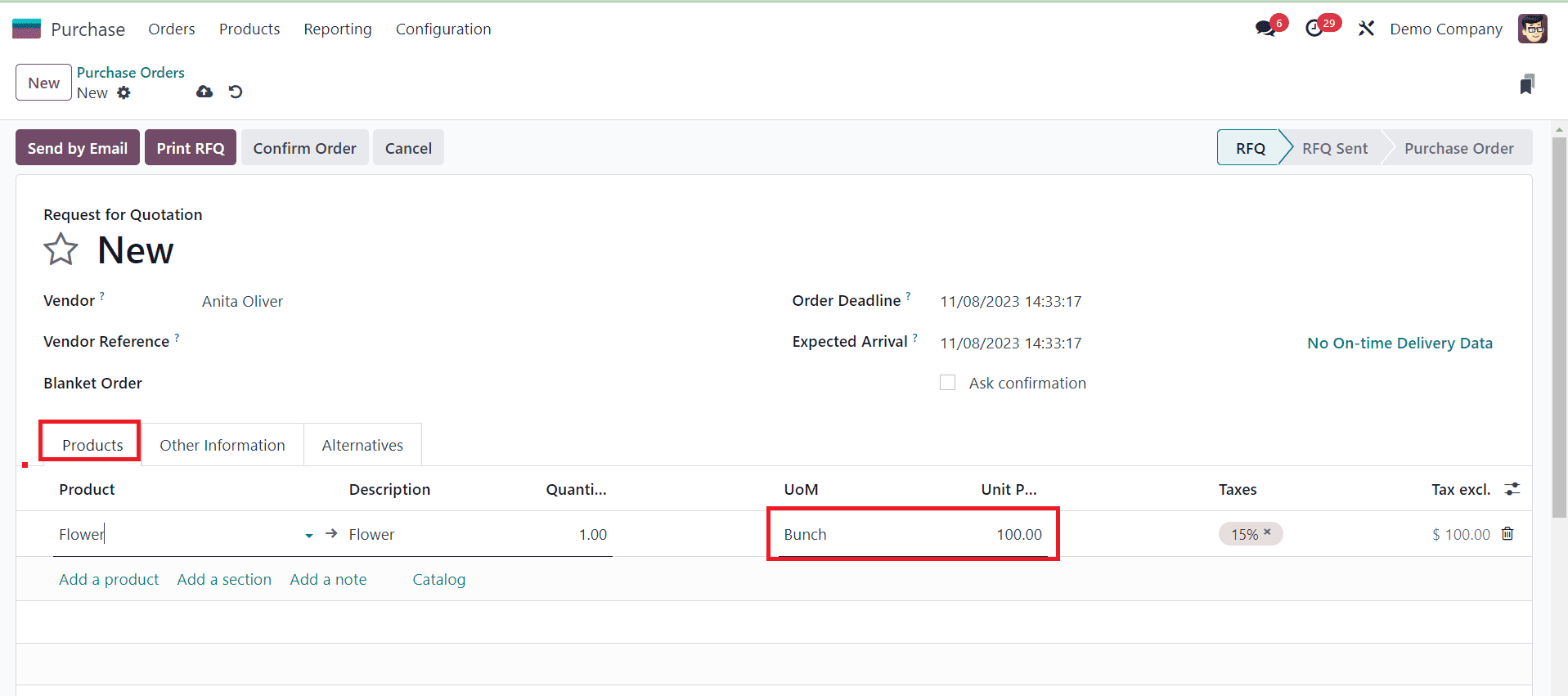
In the Purchase Order creation form, you can mention the details of the Vendor in the given field. When you select the product in the Products tab, you can find the default Purchase UoM as Bunch. It is automatically generated because we already configured the purchase unit of measure of the product Flower as Bunch. The cost price for 1 unit of flower is $10. Since we configured the UoM Bunch as 10 times bigger than the reference unit of price, here you can find the Unit Price as $100 for one Bunch.
Now, if you want to purchase the product Flower in different UoM, you can use the Add a Product button and select the product Flower again.
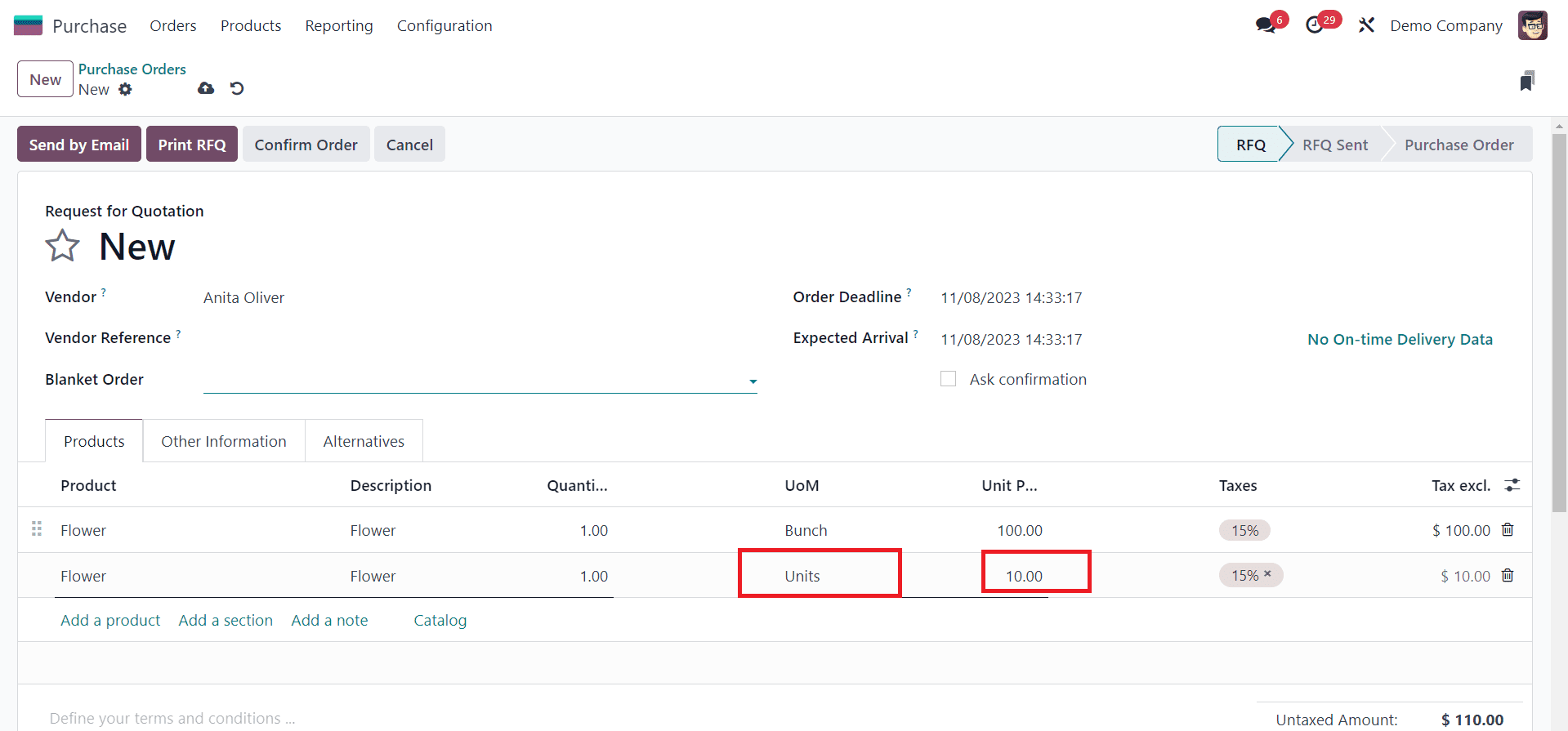
Here, you can change the default purchase UoM and select the suitable one from the given dropdown. We used Units as UoM this time and we can see the Unit Price for one unit as $10. This way, you can purchase products in different units of measure. Click the Confirm Order button and confirm the order.
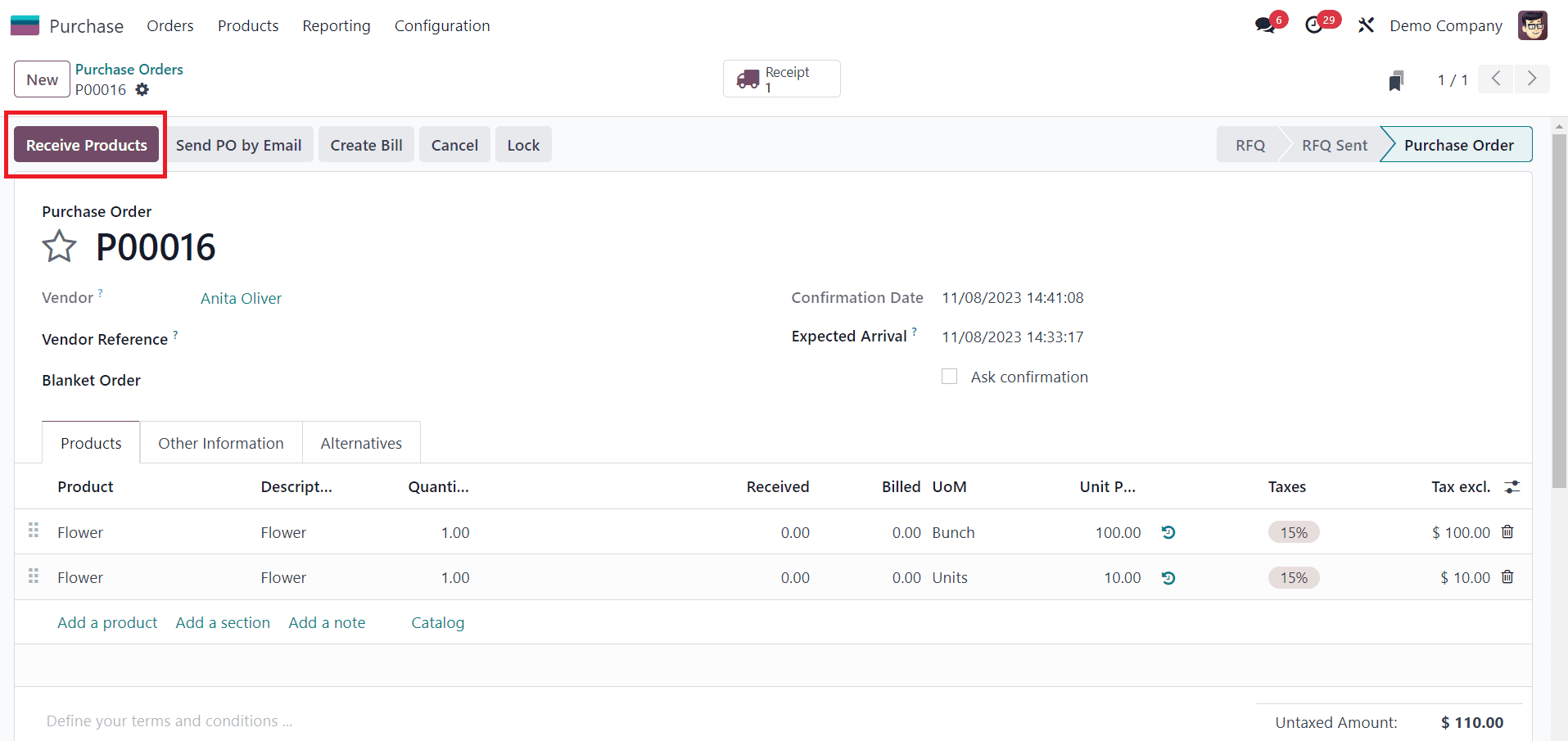
When you receive the products, Odoo will adjust the stock quantities based on the unit of measure you used for receiving. By following these steps, you can purchase products in different units of measure in Odoo, making it more flexible for your business needs.
When selling a product in different units of measure, you can follow the same method.
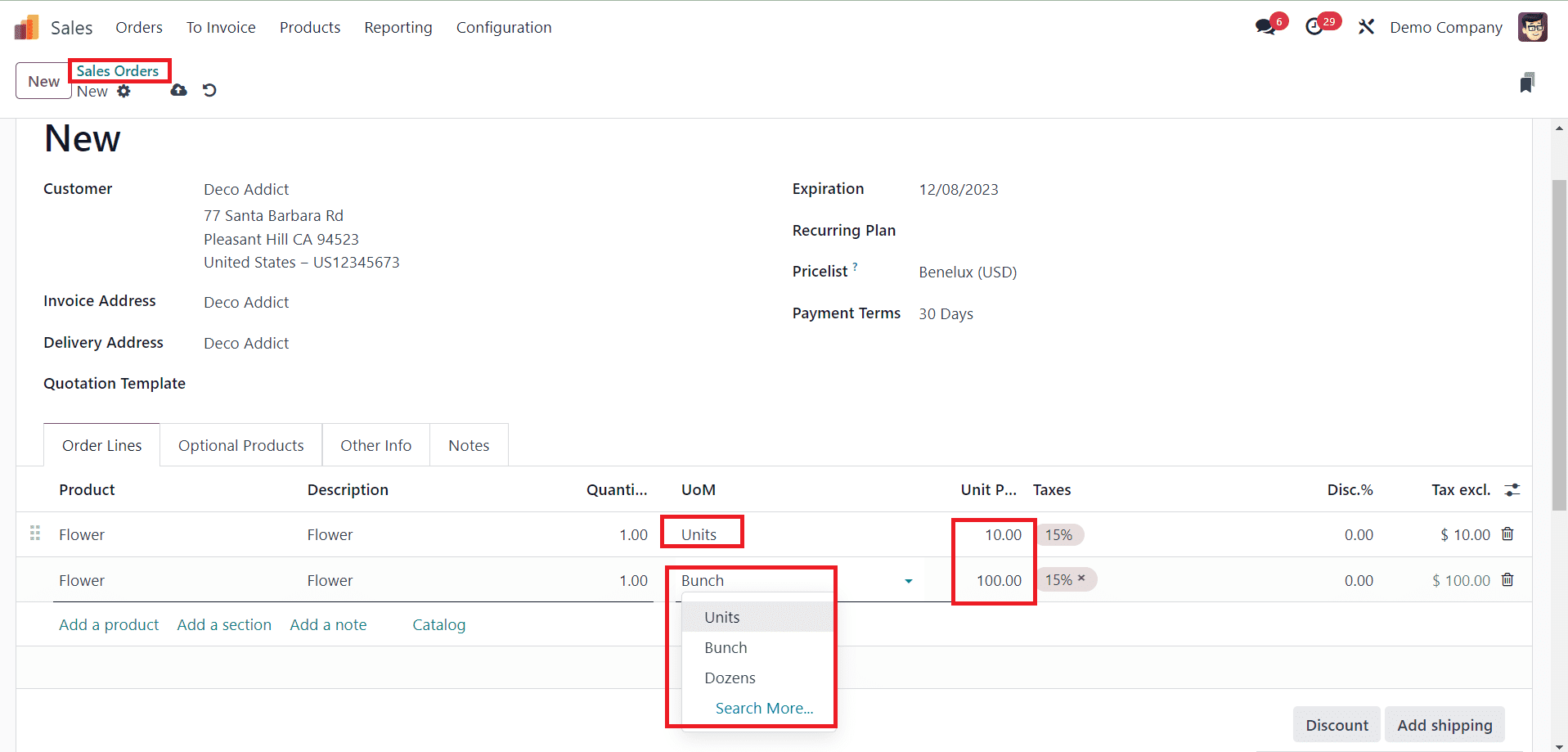
When creating a sales order, you can select the appropriate unit of measure for each product on the order line. Odoo will handle the conversions and pricing based on the defined units of measure.
By effectively utilizing Odoo/Odoo 17's capabilities, businesses can maintain better control over their inventory, reduce errors, and ultimately enhance their competitiveness in the market.